Making it playable
Once you have your map set out properly it's always a good idea to try it out and check that the scale is right. To start up a game you need to do the following (assuming you already have the tool window open):
Create start markers
First we create two markers which serve as the starting points where the ACU's will gate in.
- Open to the Markers Layer (or just press F6)
- Create two blank markers by dragging the "blank marker" icon out onto your map (they should appear in the markers tool window as "Blank Marker 00" and "Blank Marker 01")
- Rename "Blank Marker 00" to "ARMY_1" and "Blank Marker 01" to "ARMY_2" (by clicking on them twice slowly)
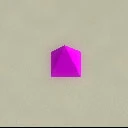
In case you're wondering, this is how a marker on the map looks like:
Create armies
Next we create armies. Defining an army is important for the game scripts, everything a player can control belongs to a specific army. So for a 2 player map, we need 2 armies.
- Open the armies layer (or just press F2)
- Create two armies (click the leftmost new army button)
- Open the games layer (or just press F1)
- Click on "add a configuration" and rename the configuration to "standard" (by clicking on it twice slowly)
- Click on "add a team"
- Drag the two armies ("ARMY_1" and "ARMY_2") into the teams box
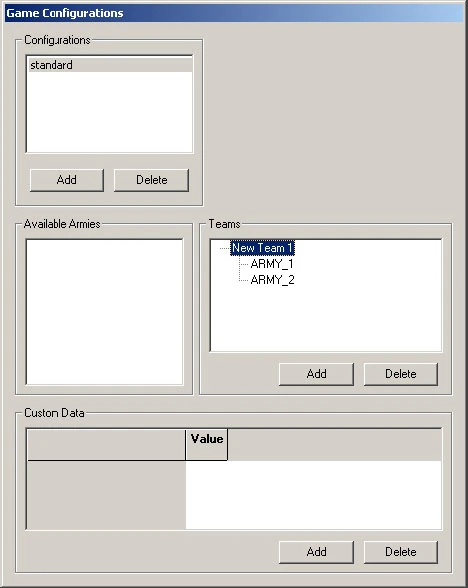
What we want to do next is rename the team to FFA, however the editor doesn't work very well here so we have to do it manually:
- Save your work and close the editor
- Go to your "\Supreme Commander\Map\YourMapName" folder
- Open the YourMapName_scenario.lua file with a text editor
- Add the new parts to this file
   Configurations = {
       ['standard'] = {
           teams = {
               { name = 'New Team 1', armies = {'ARMY_2','ARMY_1',} },
           },
           customprops = {
           },
       },
   }}
- Change the "New Team 1" bit to "FFA" so that it looks like this:
   Configurations = {
       ['standard'] = {
           teams = {
               { name = 'FFA', armies = {'ARMY_2','ARMY_1',} },
           },
           customprops = {
           },
       },
   }}
- Save the YourMapName_scenario.lua file, now the map is playable.
Adding a startup script
We also need to add a lua script file to get the game running:
- Create a file called "YourMapName_script.lua" in the same folder
- Copy and paste the following in (a detailed explanation is in the scripts section)
   local ScenarioUtils = import('/lua/sim/ScenarioUtilities.lua')

   function OnPopulate()
   	ScenarioUtils.InitializeArmies()
   end

   function OnStart(self)
   end
- Save the file and close the editor
Finished! You should now see the map in the Supreme commander maps list and you should be able to play it! Please try to do so and if you can, you can skip ahead to the next lession. If not, the following should help you out (although it's a bit extensive, so just ignore it if you can actually play the map).
Further changes to the scenario file
If your map is unplayable, it is likely that something has been messed up in the scenario.lua file. I have made the following code to make it a bit easier to understand what exactly is being done by the computer. Please note that this scenario file may look different than what you see in your editor. Several lines of code are in another place than in the code generated by the map editor. Should your code, for some reason, not work (and can't you figure out why) then this piece of code is a good template to find the error or to replace the old code in the scenario.lua file alltogether. The lua is fairly flexible in reading the elements (for example, note the difference between ['standard'] and standard in this code and the piece directly above). The code has the following structure:
version = 3
ScenarioInfo = {
	name="yourmapname",
	description="<yourmapname>yourmapname",
	map="/maps/yourmapname.v0001/yourmapname.scmap",
	map_version=1,
	save="/maps/yourmapname.v0001/yourmapname_save.lua",
	script="/maps/yourmapname.v0001/yourmapname_script.lua",
	size={ 256, 256 },
	starts=true,
	preview="",

	type="skirmish",
	Configurations={
		standard={
			customprops={ },
			teams={ { armies={"ARMY_1","ARMY_2",}, name="FFA"}}
		}
	},

	norushoffsetX_ARMY_1=0,
	norushoffsetX_ARMY_2=0,
	norushoffsetY_ARMY_1=0,
	norushoffsetY_ARMY_2=0,
	norushradius=70,

	}
The following rules apply. If something is broken to the point that you can't play your map (usually you will see spawn points in the left-top corner, or not at all):
- An element starts with its type (e.g. ScenarioInfo={ is an element) and it ends with the } bracket all the way at the end. When an element has subelements, they can be seen in between the brackets, { and }. Paths and names that are referred to, are in quotation marks ('" or ''). Subsequent elements and subelements are listed by the commas (,)
- The location of elements and subelements in an element does not matter. For example, the teams subelement has two subelements, armies and name. In this piece of code, name comes after armies, but the code above has armies before name. Even "ARMY_1" can be swapped with "ARMY_2", but the comma in between them must remain there.
- The placement of commas and brackets does matter. It allows the program to correctly read the different elements as they are listed. For example, the Configurations={ element has its ending bracket five lines lower. The comma that follows it directly, tells that there are more elements following (In this case, the no rush information). Be aware that one missing comma will make the map unplayable. If you happen to find that (when you try to test the game), the spawn points are all in the upper left corner in the preview (or nowhere to be seen), then search for improperly placed or missing commas and brackets first! It's unclear what a comma too much will do, as previous code (containing only the Configurations section) has some commas indicating that there are more subelements to follow, but there are none. In this set of code, all those commas are gone. Both should work, but if something doesn't work and there are superfluous commas, it's best to remove them.
- When uploading the map to the vault of the Forged Alliance Forever program, the map_version will become important. When the scenario is first generated by the map editor, this line of code will not exist yet. Similarly, your map will probably be the folder /maps/yourmapname/ and its contents. The change of the folder name to /maps/yourmapname.v0001/ should be done to ensure proper updating in the FAF map vault. When you have done the upload and find some things that are out of place, or missing, you can now simply make the changes, then change v0001 to v0002 everywhere in this scenario and in the folder name. Finally, change map_version=1 to map_version=2 and you can upload the same map under the same name again. Now the FAF vault will overwrite the old version with the new one. This system has been implemented to automatically clean up the map vault whenever someone wants a new and improved version of the map. So don't forget to ensure this is added in your scenario file.
If you find, after a lot of trying, that the editor-generated code is still not making the map playable, then you can copy the full code in this section and use it to replace the old code completely. Then, the following parts should be changed to ensure that everything works:
- Every yourmapname should be changed to what your map name is.
- The number of armies must be consistent to the number of players that will play on your map. So if you have six armies in total, you should add "Army_3",'"Army_4",'"Army_5",'"Army_6",' and for a total of 8 armies, it should of course continue to "Army_8",
- Do the same for the no rush information. Every army number x must have a norushoffsetX_ARMY_x=0', and a norushoffsetY_ARMY_x'=0, (If you want a different offset, that is of course perfectly fine.
- The 'size={256,256}' element must have the correct numbers for its x and y dimension. If you have a map that is 256 by 256 units (5km by 5km), then you can leave this alone. Otherwise, change the numbers to what they should be (512 for 10km, 1024 for 20km, 2048 for 40km and 4096 for 80km). Be careful that you don't mix up the x and y size if you have map that isn't a perfect square.
- Should you not yet have renamed your map for the correct map version, do so. Please note that this still has map_version = 1, so if you are already beyond that version, this should change in accordance.